CrystalDiskInfo Guide: How to Check Hard Drive and SSD Health
CrystalDiskInfo is a free, open-source utility that reads SMART data from your hard drives and SSDs and displays it in a clear, color-coded interface. If you're buying used hard drives or used SSDs on eBay, this is the single most important tool you need.
What Is CrystalDiskInfo?
Every hard drive and SSD has a built-in self-monitoring system called SMART (Self-Monitoring, Analysis, and Reporting Technology). The drive tracks dozens of health metrics internally: error counts, temperature history, hours of use, and more. CrystalDiskInfo reads this data and presents it in a way humans can actually understand.
Download
- Official site:
crystalmark.info/en/software/crystaldiskinfo/ - License: Free and open source (MIT)
- Platform: Windows (for Linux, use
smartctlfrom the smartmontools package) - Choose "Standard Edition": the themed editions are the same tool with anime skins
The Health Status Indicator
CrystalDiskInfo shows one of four status badges at the top of each drive:
| Status | Color | What It Means |
|---|---|---|
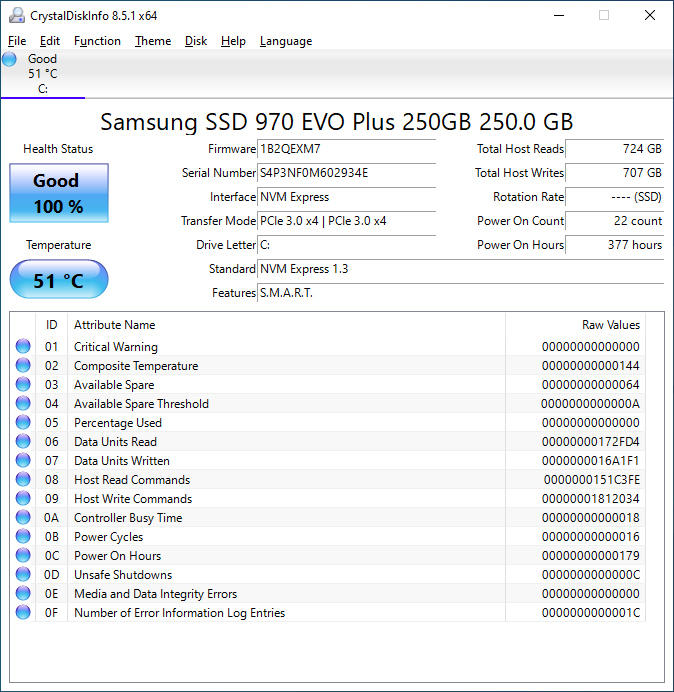
| Good | Blue | All SMART attributes are within normal thresholds. The drive is healthy. |
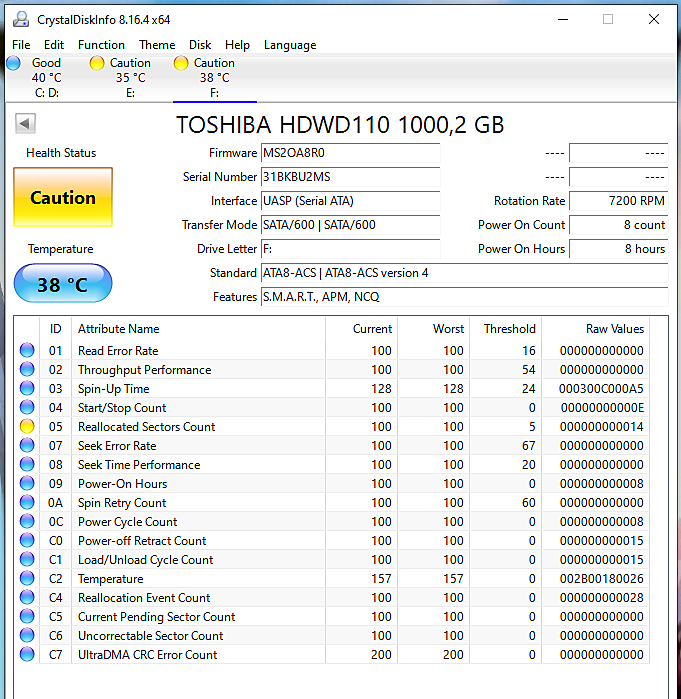
| Caution | Yellow | One or more attributes have crossed a warning threshold. The drive may be developing issues. Investigate which attribute triggered it. |
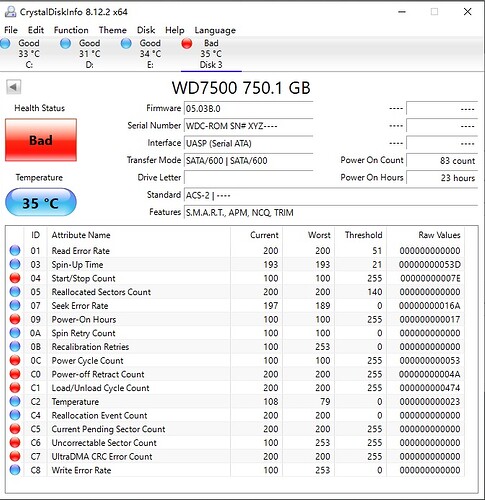
| Bad | Red | One or more attributes have crossed a critical threshold. The drive is failing or has failed. Back up data immediately and replace it. |
| Unknown | Gray | CrystalDiskInfo can't read SMART data. Common with some USB enclosures, RAID controllers, or drives behind hardware RAID cards. |
"Good" Doesn't Mean Perfect
The "Good" status only means no attribute has crossed its manufacturer-set threshold. A drive can show "Good" while still having concerning values: for example, a non-zero Reallocated Sector Count that hasn't yet hit the threshold. Always read the individual attributes, not just the badge.
The Top Info Bar
Below the health badge, CrystalDiskInfo shows key summary info:
| Field | What It Shows | What to Check |
|---|---|---|
| Serial Number | Unique drive identifier | Match to listing photos when buying used. Verify it matches between seller's screenshot and yours. |
| Interface / Transfer Mode | SATA, NVMe, or USB + link speed | SATA III should show "SATA/600". USB enclosures may hide some SMART data. |
| Temperature | Current drive temperature | HDDs: under 45°C is ideal. SSDs: under 50°C idle, under 70°C under load. NVMe can run hotter. |
| Power On Hours | Total hours the drive has been powered on | See our HDD buying guide for what counts are acceptable by drive class. |
| Total Host Writes | Total data written (SSDs only) | The most important metric for used SSDs. See our SSD buying guide for TBW evaluation. |
SMART Attributes: The Full Table
The main panel shows all SMART attributes in a table. Here's what the columns mean:
| Column | Meaning |
|---|---|
| ID | Hex code identifying the attribute. Standardized for common attributes, but vendors can add custom ones. |
| Current | The current normalized value (usually 0-100 or 0-253). Higher is generally better. This is a vendor-specific scale. |
| Worst | The lowest normalized value this attribute has ever reached. If Worst is close to Threshold, the drive has been near failure. |
| Threshold | The failure threshold set by the manufacturer. If Current drops below this, the drive is considered failing. |
| Raw Value | The actual raw count. This is what you should read. The normalized values are often confusing; raw values tell the real story (e.g., "5" reallocated sectors, "23,456" power-on hours). |
Focus on Raw Values
The Current/Worst/Threshold columns use a normalized scale that varies between manufacturers and is often confusing. A "Current" value of 100 might be perfect for one attribute and meaningless for another. Always read the Raw Value column: it gives you the actual count in human-readable numbers.
Critical SMART Attributes for HDDs
For hard drives, these are the attributes that matter most when evaluating a used drive:
| ID | Attribute | Good Value | Bad Value |
|---|---|---|---|
| 05 | Reallocated Sector Count | 0 | Any non-zero and rising: drive has bad sectors |
| 09 | Power-On Hours | < 40,000 for enterprise | > 60,000 or exactly 0 (wiped) |
| 0A | Spin Retry Count | 0 | Any non-zero: motor problems |
| C5 | Current Pending Sector Count | 0 | Any non-zero: active bad sectors |
| C6 | Uncorrectable Sector Count | 0 | Any non-zero: unrecoverable read errors |
| C7 | UltraDMA CRC Error Count | 0 | Low count may be cable issue, thousands = problem |
| C2 | Temperature | < 40°C | > 45°C needs better airflow |
Critical SMART Attributes for SSDs
SSDs track different attributes. NVMe drives use a different SMART specification than SATA SSDs, but CrystalDiskInfo normalizes them:
| Attribute | Good Value | Bad Value |
|---|---|---|
| Total Host Writes | < 50% of TBW rating | > 80% of TBW rating |
| Percentage Used | 0-50% | > 80%, or 100%+ (exceeded rated life) |
| Available Spare | 100% | < 10%: running out of spare NAND |
| Media Errors | 0 | Any non-zero: NAND failing |
| Unsafe Shutdown Count | Low | Very high count: many unexpected power losses |
| Temperature Warning Count | 0 | High count: drive overheated frequently |
Linux Alternative: smartctl
If you're on Linux (or prefer the command line), smartctl from the smartmontools package gives you the same SMART data:
Quick smartctl Commands
sudo apt install smartmontools: install on Debian/Ubuntusudo smartctl -a /dev/sda: show all SMART data for a SATA drivesudo smartctl -a /dev/nvme0n1: show all SMART data for an NVMe drivesudo smartctl -t long /dev/sda: start a long (extended) self-testsudo smartctl -l selftest /dev/sda: view self-test resultssudo smartctl -H /dev/sda: quick health check (PASSED/FAILED)
For detailed smartctl documentation, see the smartmontools project.
Common Questions
Can SMART data be faked or wiped?
Yes. The telltale sign: a manufacture date years ago but Power-On Hours at exactly 0. Always match the label date to SMART data when buying used.
My drive shows "Caution": is it dying?
Check which attribute triggered it. A few Reallocated Sectors on an old drive is normal wear. But non-zero Current Pending or Uncorrectable Sectors means active problems. Back up and replace.
Why does CrystalDiskInfo show "Unknown" for my drive?
Common with USB enclosures and hardware RAID controllers that don't pass through SMART commands. Connect the drive directly via SATA or M.2.
How often should I check SMART data?
New used drive: daily for a week, weekly for a month, then monthly. Set CrystalDiskInfo to run at startup in the system tray for automatic alerts.